
Third-party security keys can be used for two-factor authentication. Most of these devices are plugged into a USB port on a computer or laptop and are not intended for use with smartphones. (Note that some high-end versions of these devices do not need a USB connection.) Standard USB security keys cost $25 and up and can be purchased through Amazon

Instructions for Setting up a USB Security Key 

1. Ensure that your security key is plugged into the USB port on the device and that pop-ups are enabled in your browser. 

2. Welcome Screen - Click Start Setup to begin enrolling your device. 
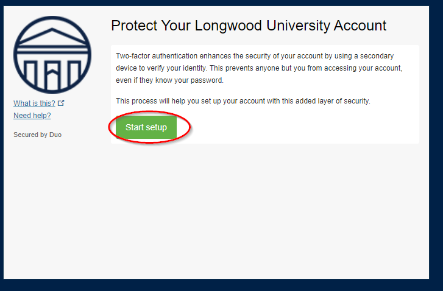
- Duo enrollment page titled “Protect Your Longwood University Account.” Text explains that two-factor authentication uses a secondary device to verify identity. A green “Start setup” button is displayed and circled in red. Longwood seal and “Secured by Duo” links appear in the left sidebar.

3. Choose Your Device Type - Select Security Key for the device type and click Continue. 
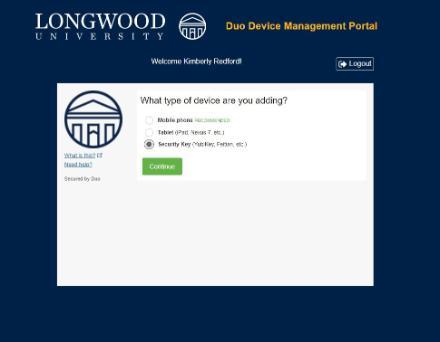
- Longwood University Duo Device Management Portal with a welcome message and Logout button. Form asks, “What type of device are you adding?” with radio button options. Options include Mobile phone (recommended), Tablet, and Security Key. The Security Key option is selected, with a green “Continue” button below.

4. A pop-up window will prompt you to tap your key to enroll. 
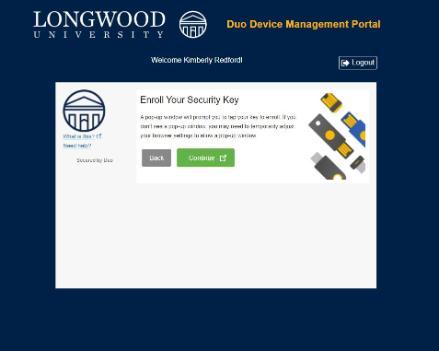
- Longwood University Duo Device Management Portal showing the “Enroll Your Security Key” step. Instruction text explains a pop-up will prompt you to tap your key to enroll. Buttons include “Back” and a green “Continue” button with an external-link icon. Illustration of multiple security keys appears on the right side of the panel.